To my extremely great surprise, Microsoft has finally fixed a very annoying feature in Excel.
When importing CSV-files to Excel that contained (what could look like) a number, Excel would without fail convert that to a number during import and, if it was large enough like 1000000000001234567, convert it to Scientific Notation (1.000E+18) and in the process remove precision in the number. Even if you later forced it back to text or similar, it had forever lost the precision (1000000000001234000) and was hence utterly useless.
That is happily a feature in the past for Office 365. Now you can disable this impressively stupid behaviour in “Options”
Source data looks like this (from browser or textdocument)

When imported (either via CSV file open, or just copy/paste), Excel transforms to scientific notation

If the number in scientific notation is forced back to a normal number, last digits has been lost
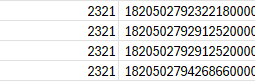
But, happily, new options settings allow you to avoid this conversion (top two options)

Now when imported, the numbers are shown as numbers without any lost precision

Ref.: superuser.com